
All keyboards
Use these keys on your Apple keyboard for these Windows functions.
Windows logo: press Command (⌘)

Backspace or Delete: press Delete

Enter or ⏎: press Return

Alt (left): press Option

Alt GR (right): press Option + Control

Pause/Break: press fn + Esc

Applications: This key isn’t available from Apple keyboards

Extended keyboard keys
If your keyboard doesn’t include these keys, press these key combinations in Windows instead.
Insert: press fn + Return

Forward Delete: press fn + Delete

Home: press fn + left arrow

End: press fn + right arrow

Page Up: press fn + up arrow

Page Down: press fn + down arrow

Number Lock: press fn + F6


Print Active Window: press fn + Shift + Option + F11

Scroll Lock: press fn + Shift + F12

Numeric keypad mappings
For numerical entry on the Apple Wireless Keyboard, use the standard numerical keys beneath the Function keys. Apple external keyboards with built-in numeric keypads provide the same function as Microsoft-compatible numeric keypads.

Use Apple Function keys in Windows
You can use some features of your Apple Keyboard function keys in Windows. Some of these keys are available only on keyboards designed for Apple devices. These keys might be named differently or might not be available on some Windows-compatible keyboards.
If you need to use the top row of keys on your Apple keyboard as standard function keys (F-keys) in Windows, hold the fn key while pressing one of the keys in the top row.
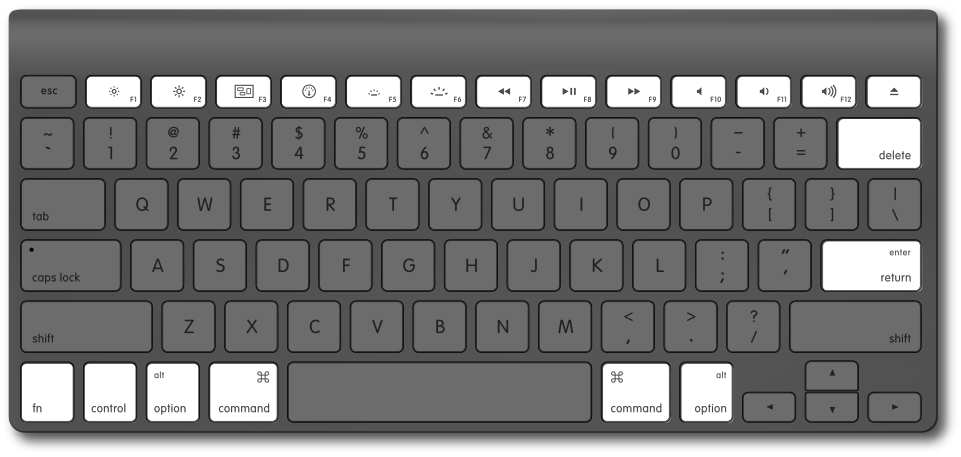
Sample Apple Wireless Keyboard (Bluetooth)

Reduce display brightness

Mission Control – not available in Windows

Reduce keyboard brightness

Previous track

Next track

Volume down

Media eject (when your Mac has an optical drive connected)

Increase display brightness

Launchpad – not available in Windows

Increase keyboard brightness

Play/Pause media in apps like iTunes

Mute toggle

Volume up

Media eject (2nd optical drive)
 Svanews
Leave a comment